Features within Event Manager
How to share your bookings with your colleagues?
Sharing your booking with your colleagues
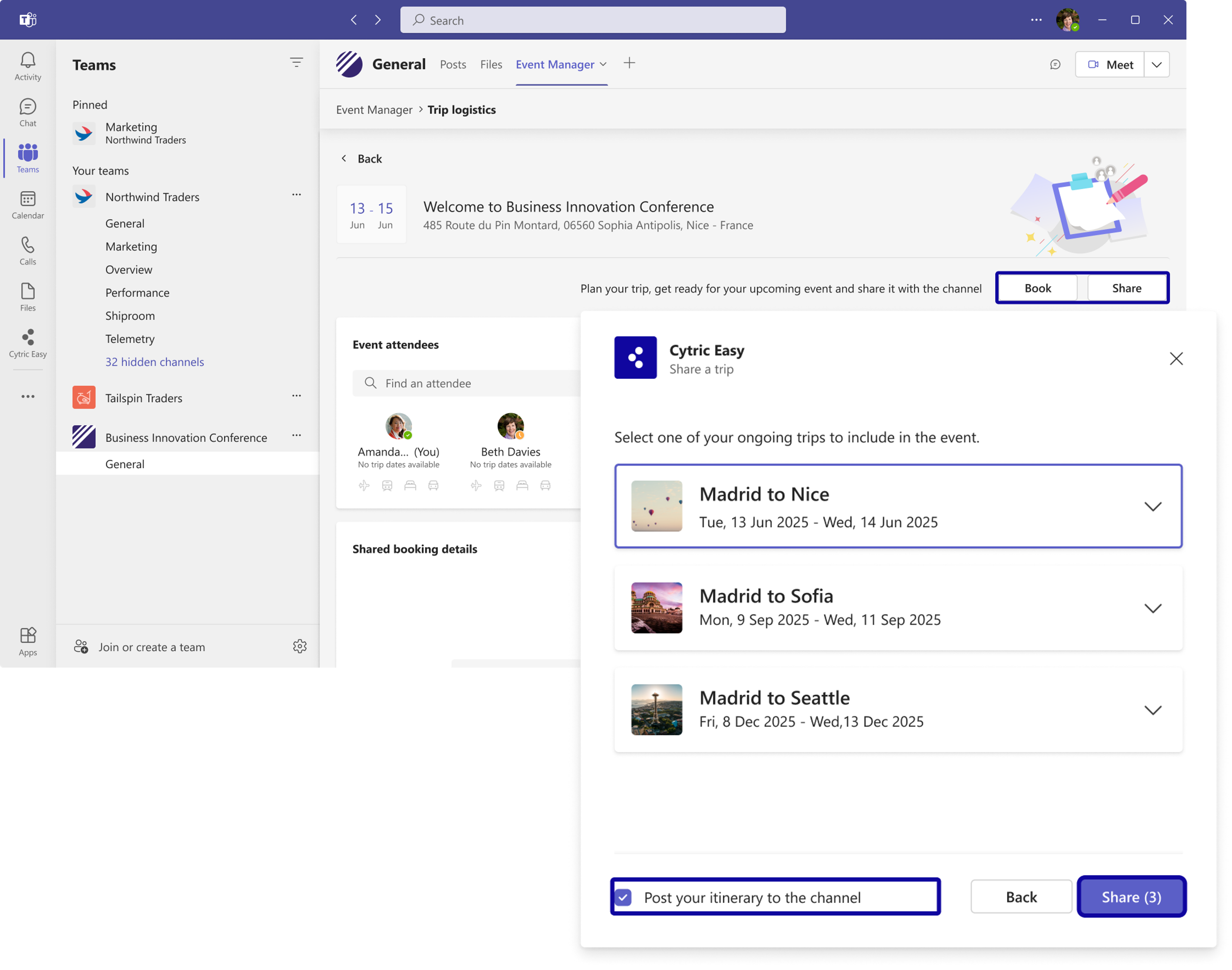
This option is included on the Trip Logistics page inside the Event. Users can book a trip for the event or share an existing one via the buttons provided.
When you click on the “Share” button, a pop-up window opens to display your list of upcoming trips. Select the trip you want to share and add it to the event.
Sharing your booking with your colleagues
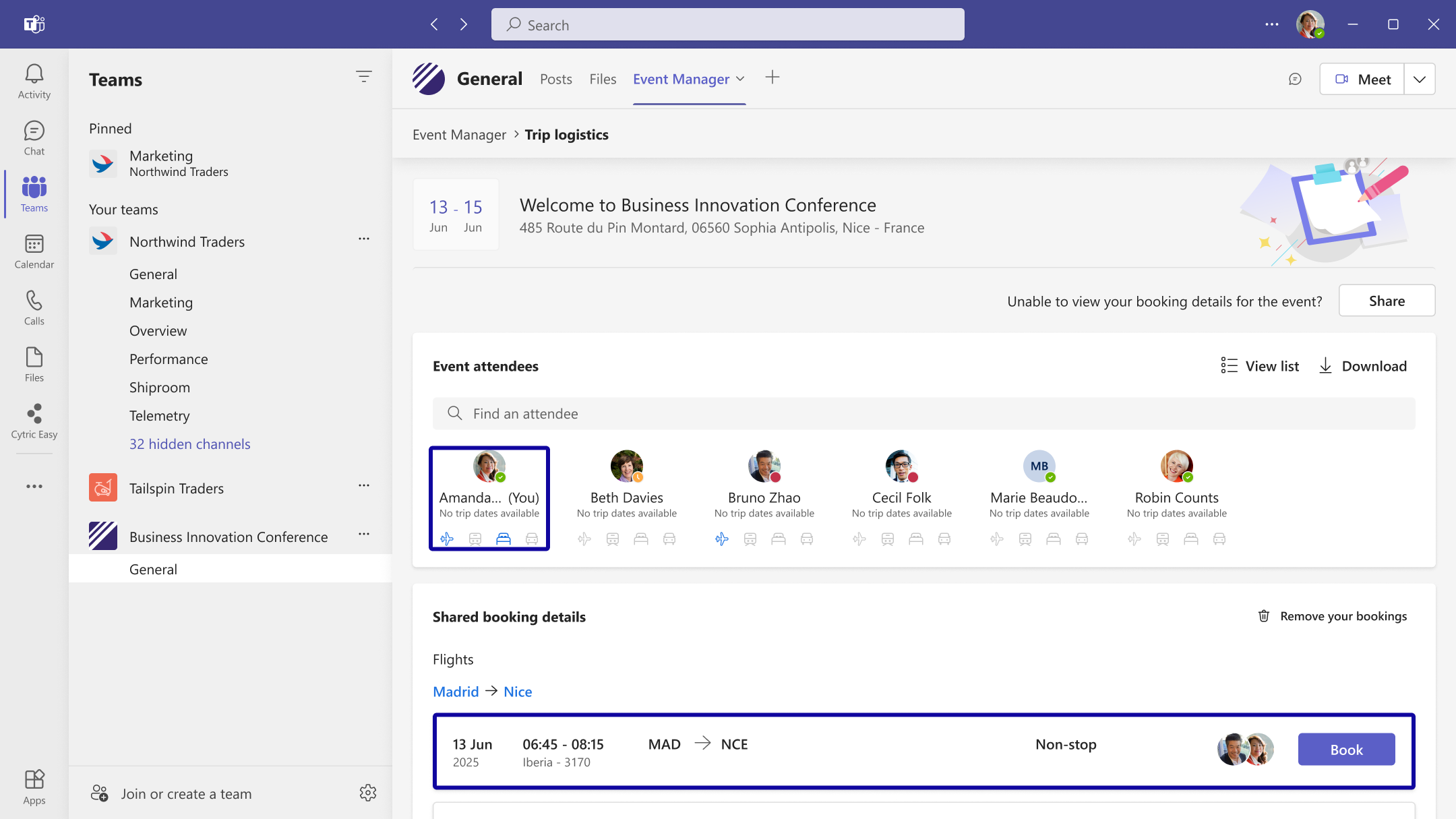
There is a checkbox at the bottom of the pop-up window to indicate if you wish to “Post your itinerary to the channel”, posting your Trip card in the Posts tab. If you uncheck it, your trip options and avatar will only be displayed in the Trip Logistics page.
Sharing your booking with your colleagues
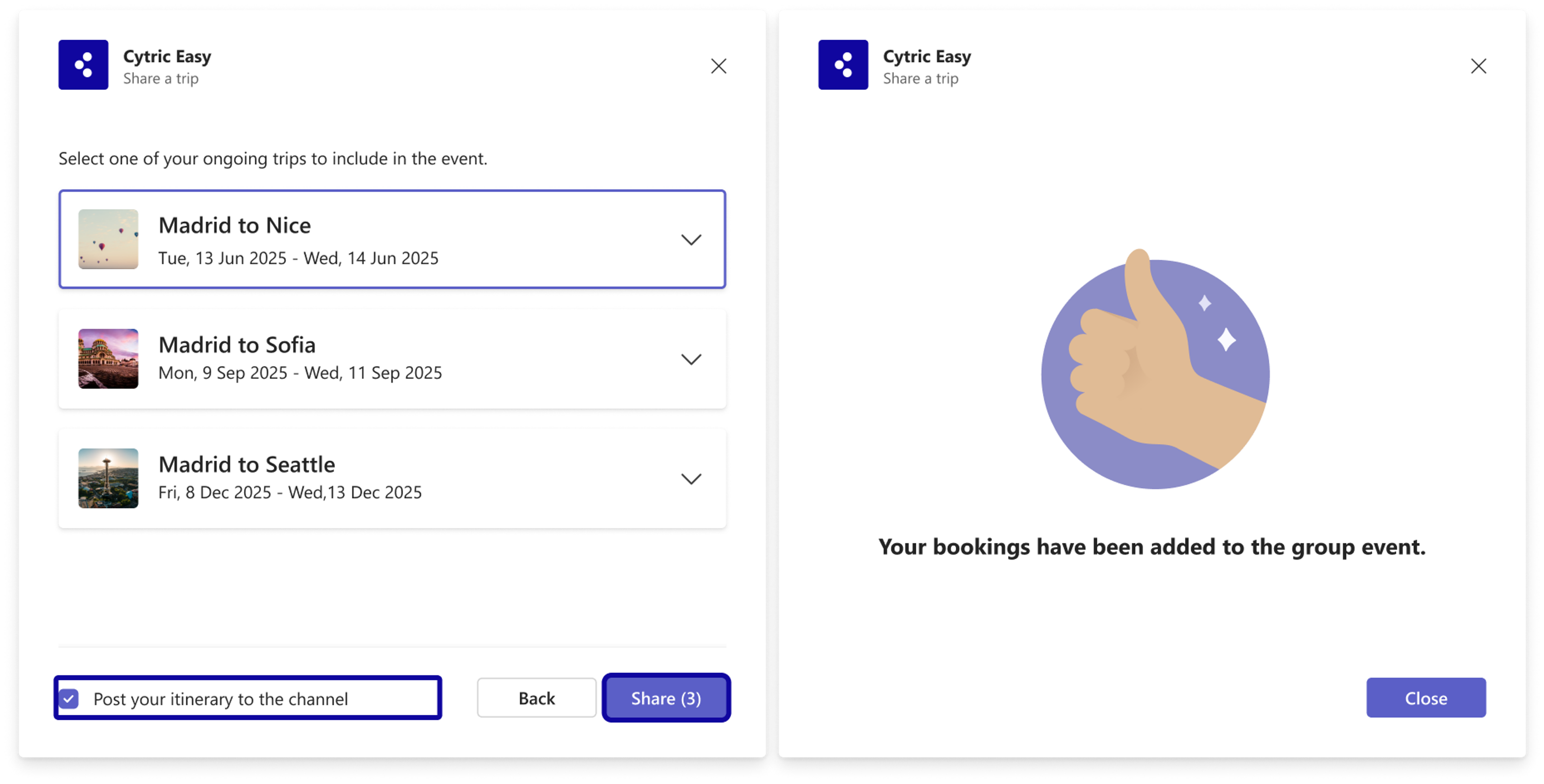
To share the trip with the event, click on the “Share” button and a confirmation message will be displayed.
How to add a pre-booking trip to the Trip Logistics page (hotel & flight)?
Adding a pre-booking
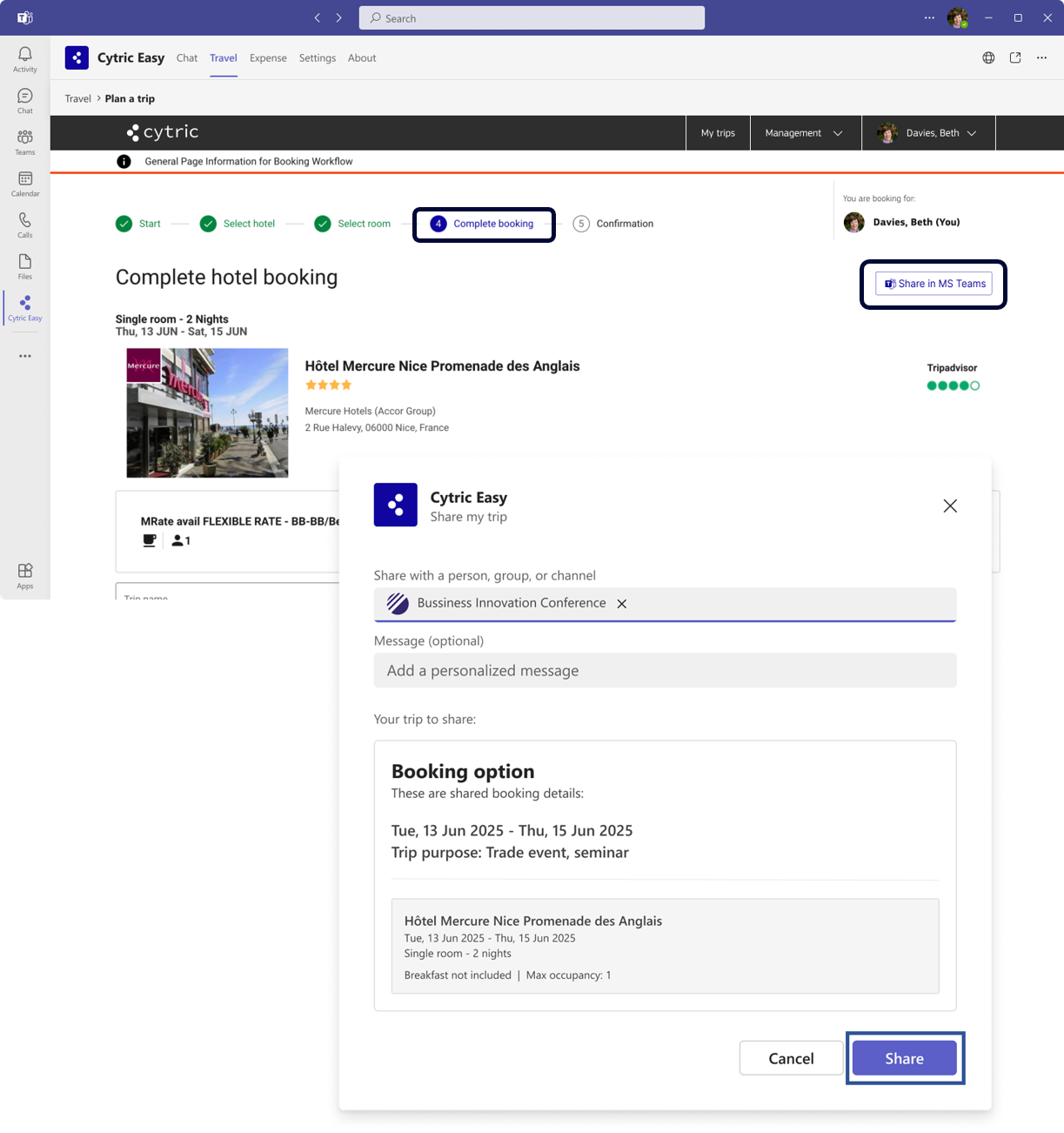
Participants can suggest flight or hotel options by searching as usual and sharing the un-booked selections for the event via the "Share in Teams" button on the booking page.
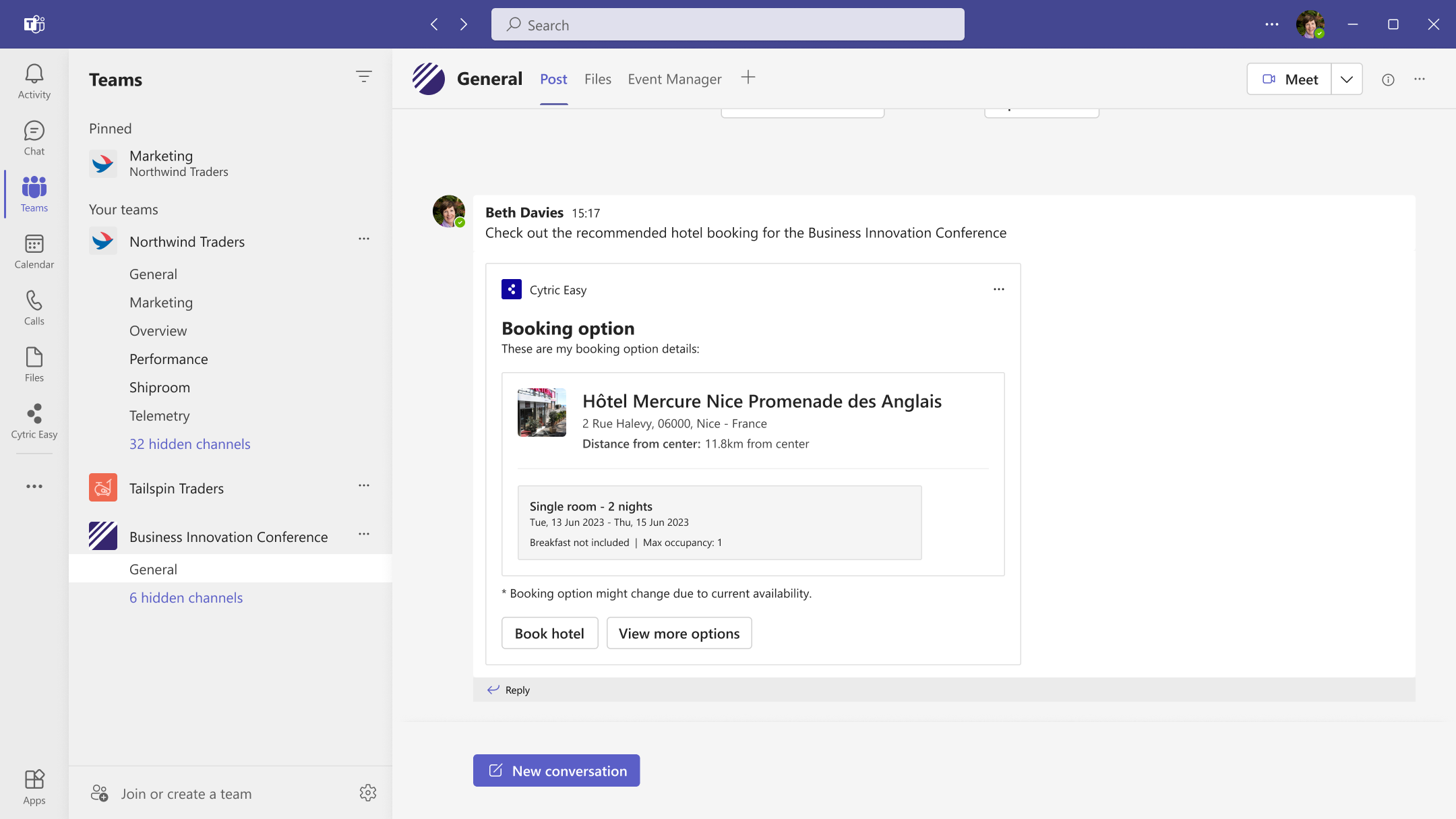
The “Share in MS Teams” button launches a pop-up window. Fill out the required fields and share it with your Teams Channel or Group chat.
Adding a pre-booking
Once the pre-booking has been shared within a Teams channel, you will see the post with the details of your pre-booking in the Post tab.
Adding a pre-booking
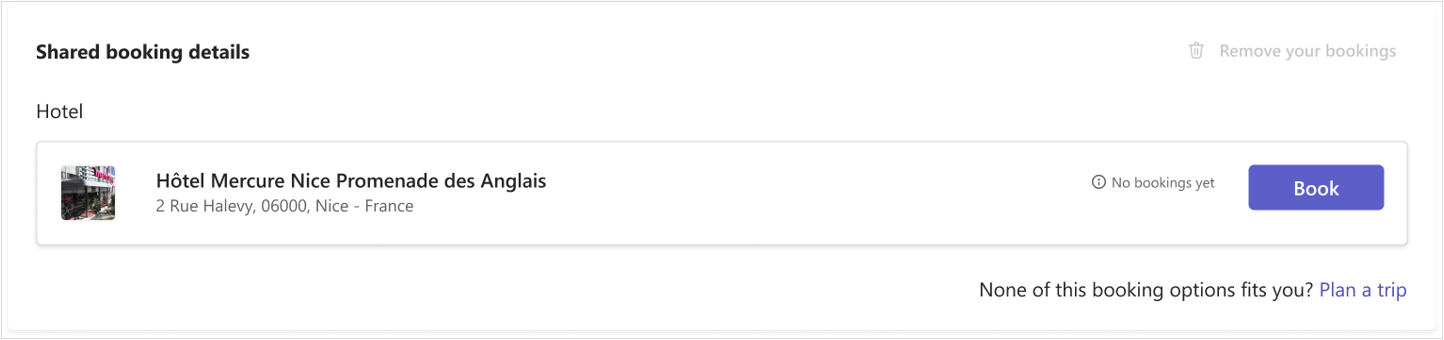
The pre-booking details will appear in Trip Logistics, in the Shared booking details area. A pre-booking will have the status “No bookings yet”.
How to recommend a hotel?
Recommend a hotel
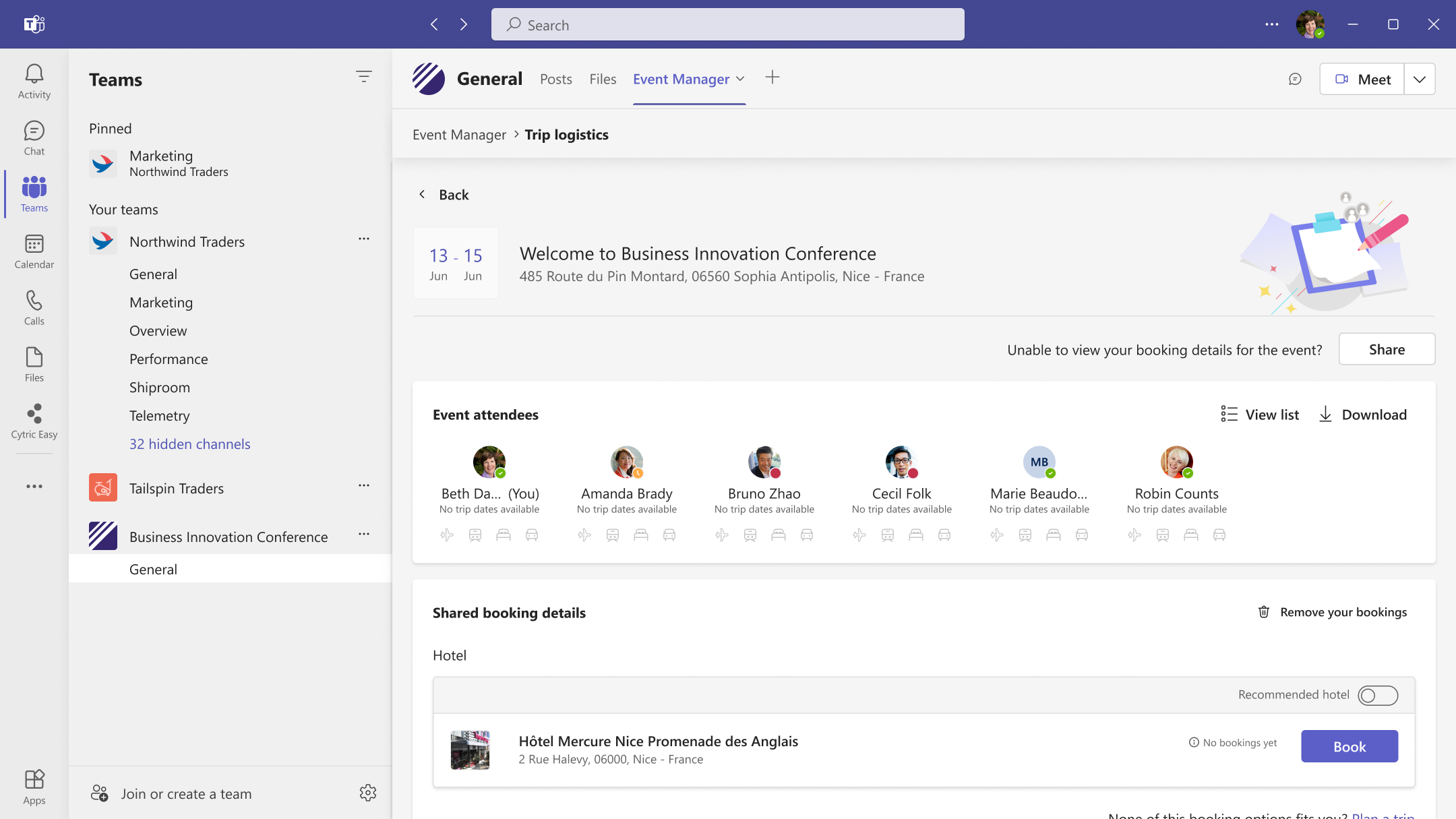
Event organizers can highlight as recommended any previously shared hotel by activating the ”Recommend hotel” toggle in the card.
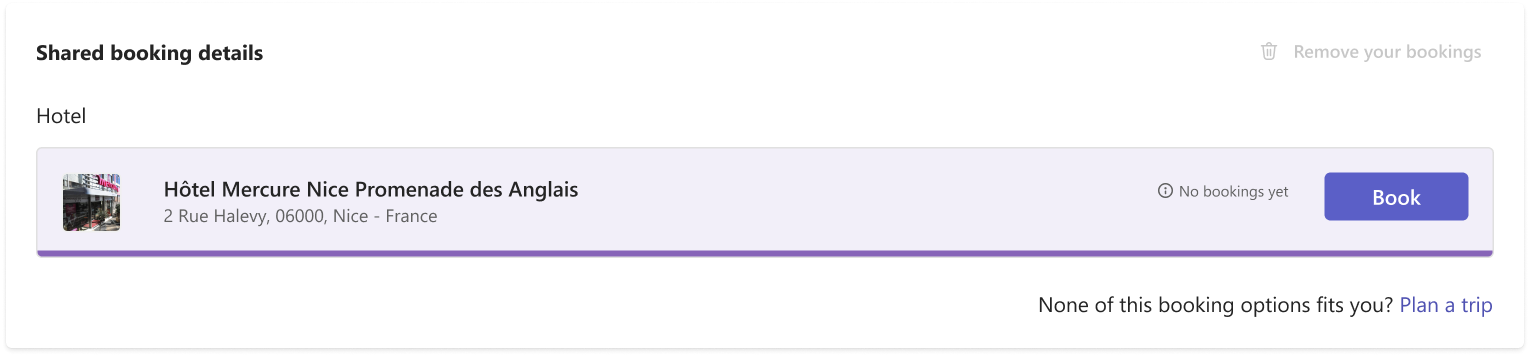
Once the hotel is recommended, it will show a purple background.
Recommend a hotel
Event Attendees will now see a Hotel option highlighted in purple and with the “Recommended hotel” label.
How to join a shared booking?
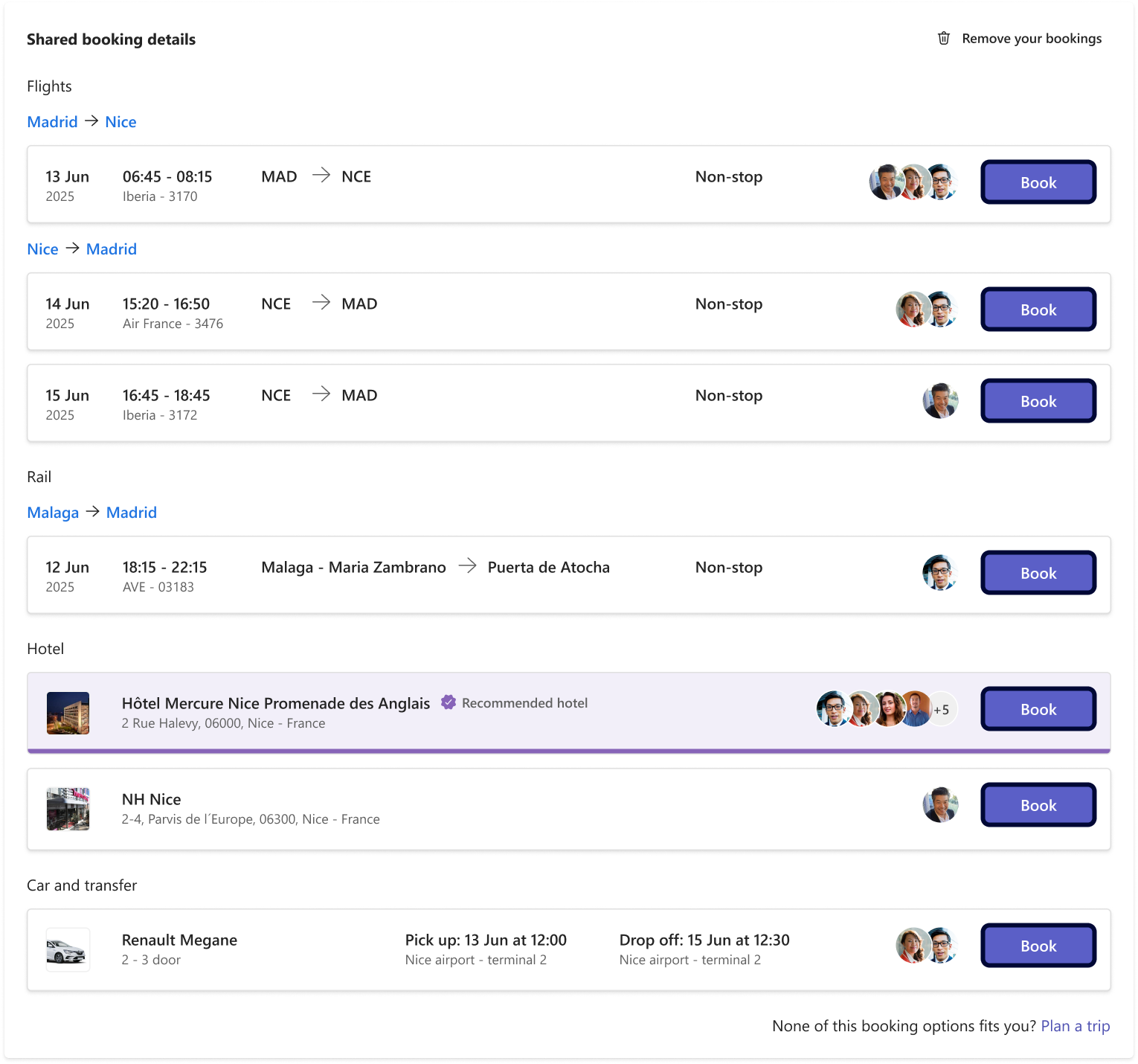
Join a shared booking
Included in the Shared Booking Details section on the Trip Logistics page, you can view and book trip options shared by other participants of the event.
To join them, click on the “Book” button that appears next to each shared booking.
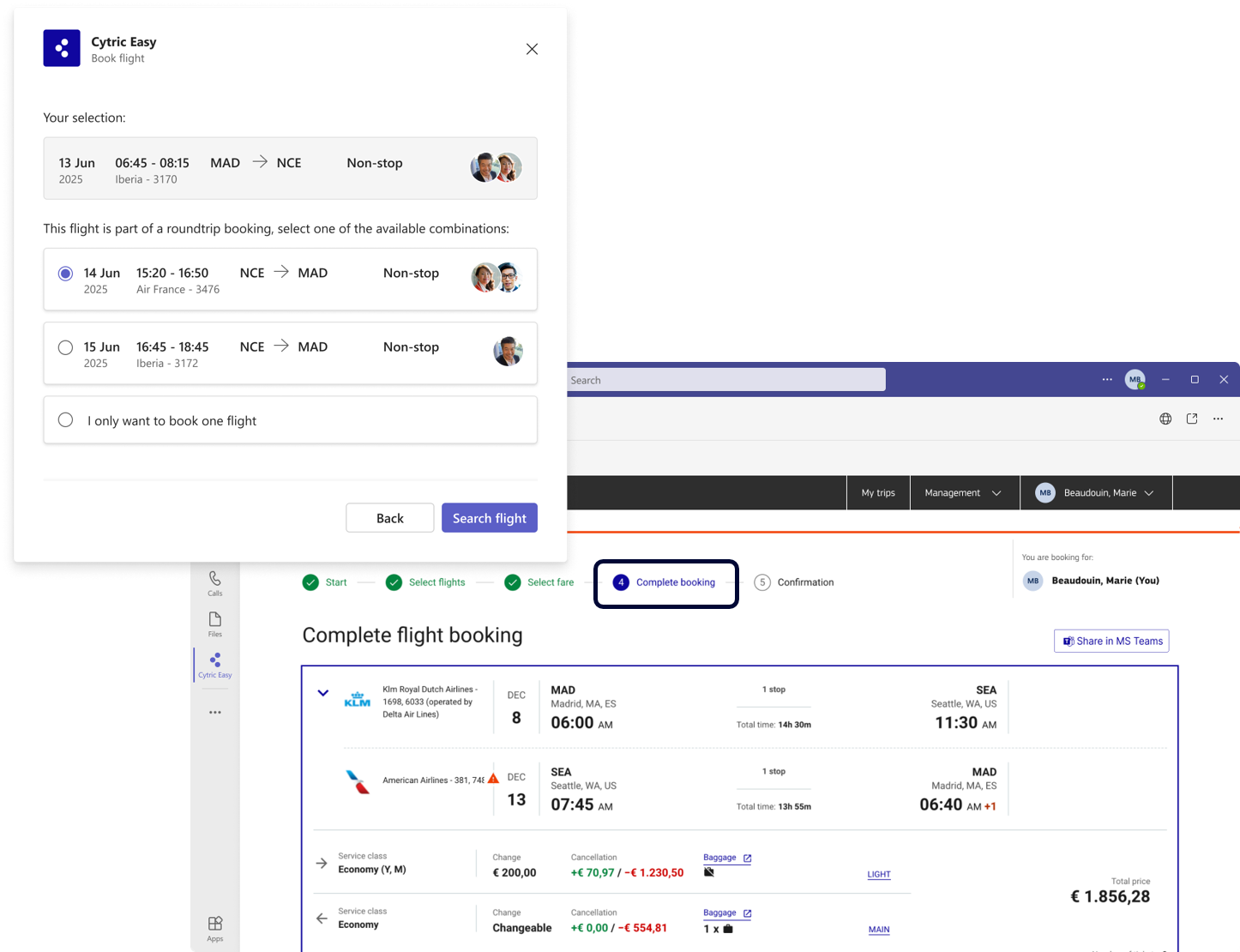
Join a shared booking
If booking a Flight or Train option in the Shared Booking Details section, the following pop-up window opens to personalize your search.
When booking a flight, you will be redirected up to the Complete Booking page. If that same option is not available or you need to personalize your trip, you’ll be redirected to the required step.
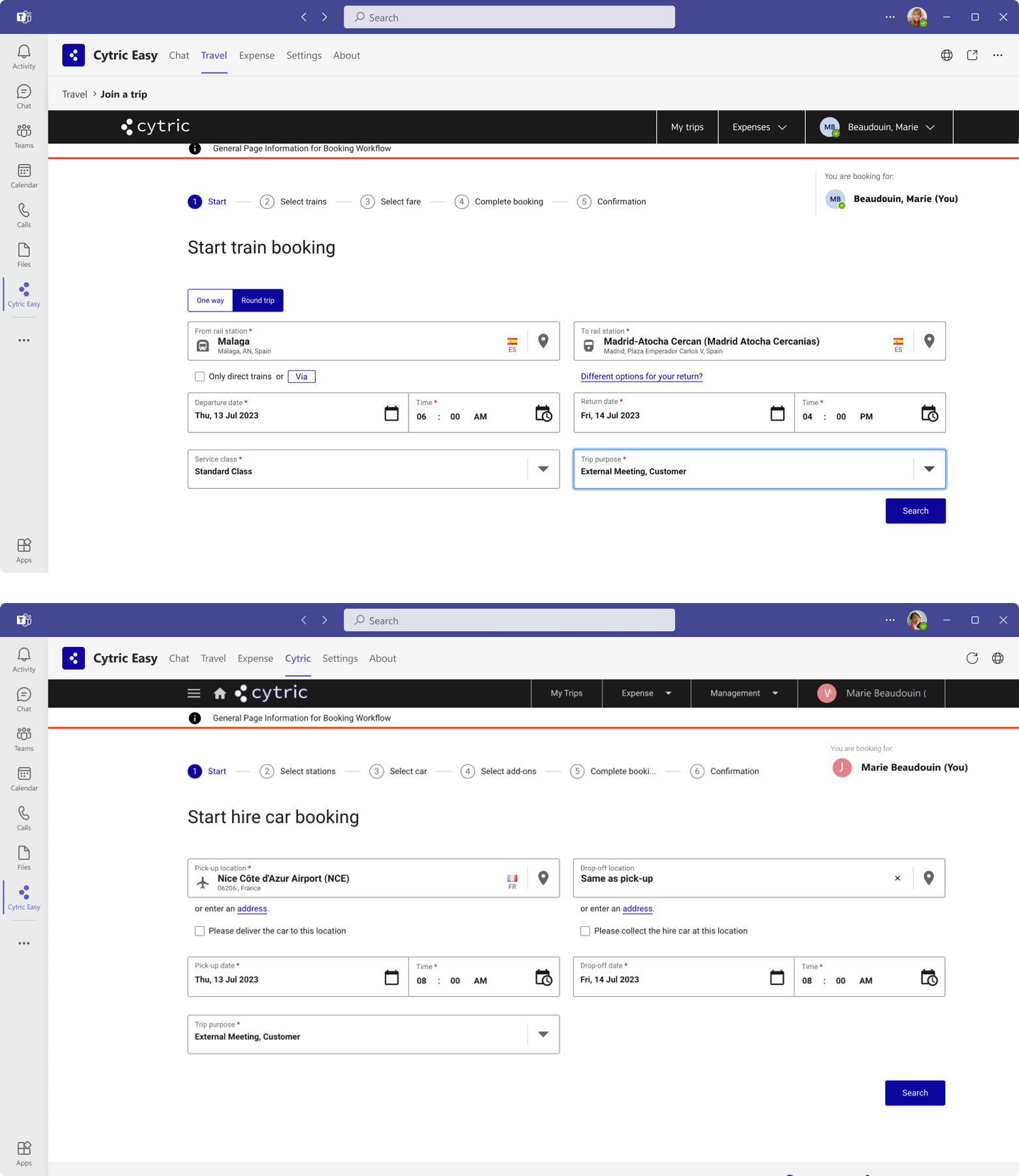
Join a shared booking
When booking a train or a car, you will start with a pre-filled search form.
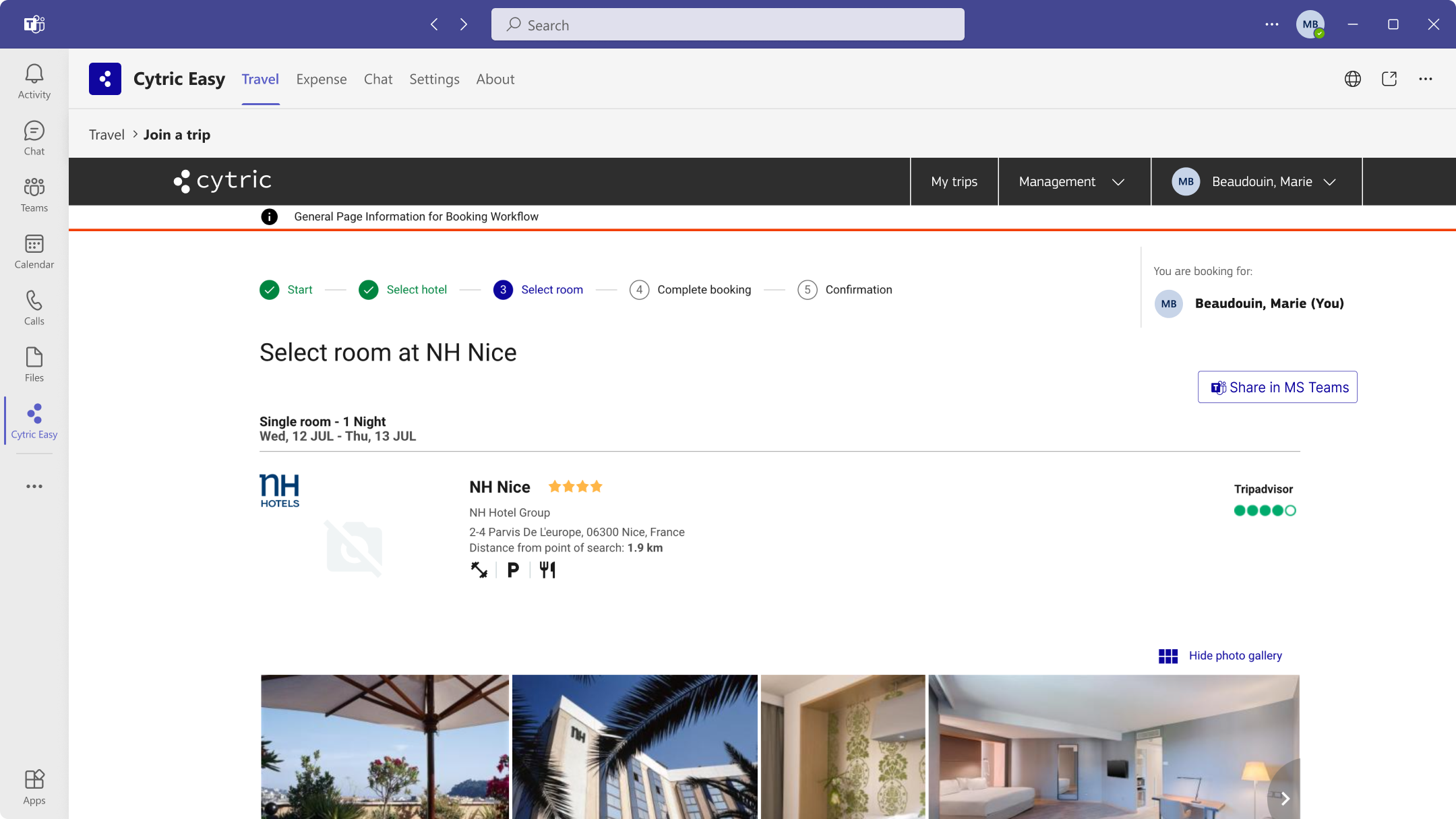
Join a shared booking
When booking a hotel, you will advance until the room selection step unless that hotel is fully booked.