How to use Cytric Easy Event Manager features?
How to create an event?
There are three ways to create an event in Cytric Easy: from the Cytric Easy application, within a Teams Channel or from a Group Chat.
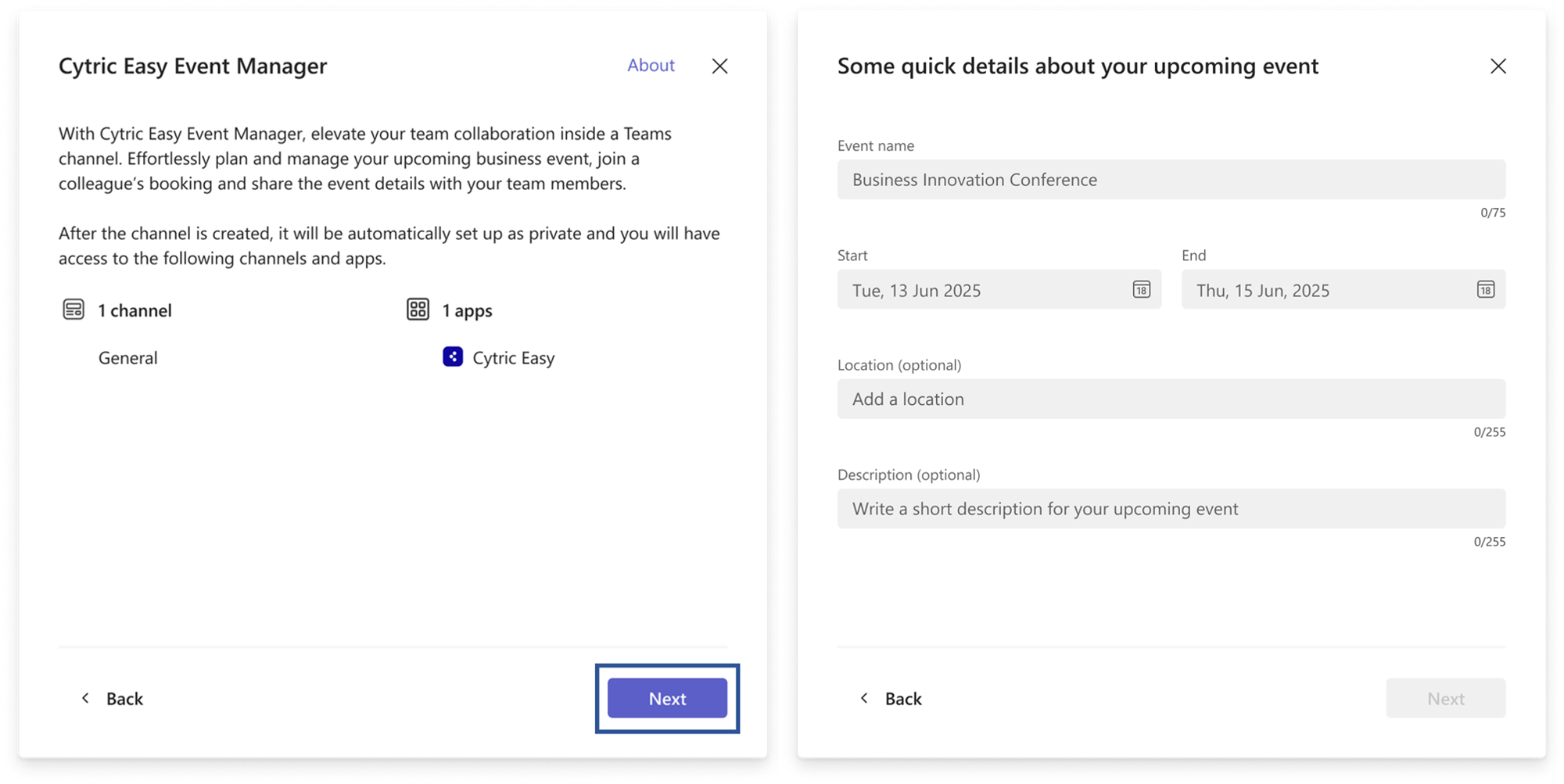
You will see a pop-up window, with a description of the Event template, the Channels, and the Apps connected to it – select “Next” to continue.
Fill in the details as required to create the event and select “Save”.
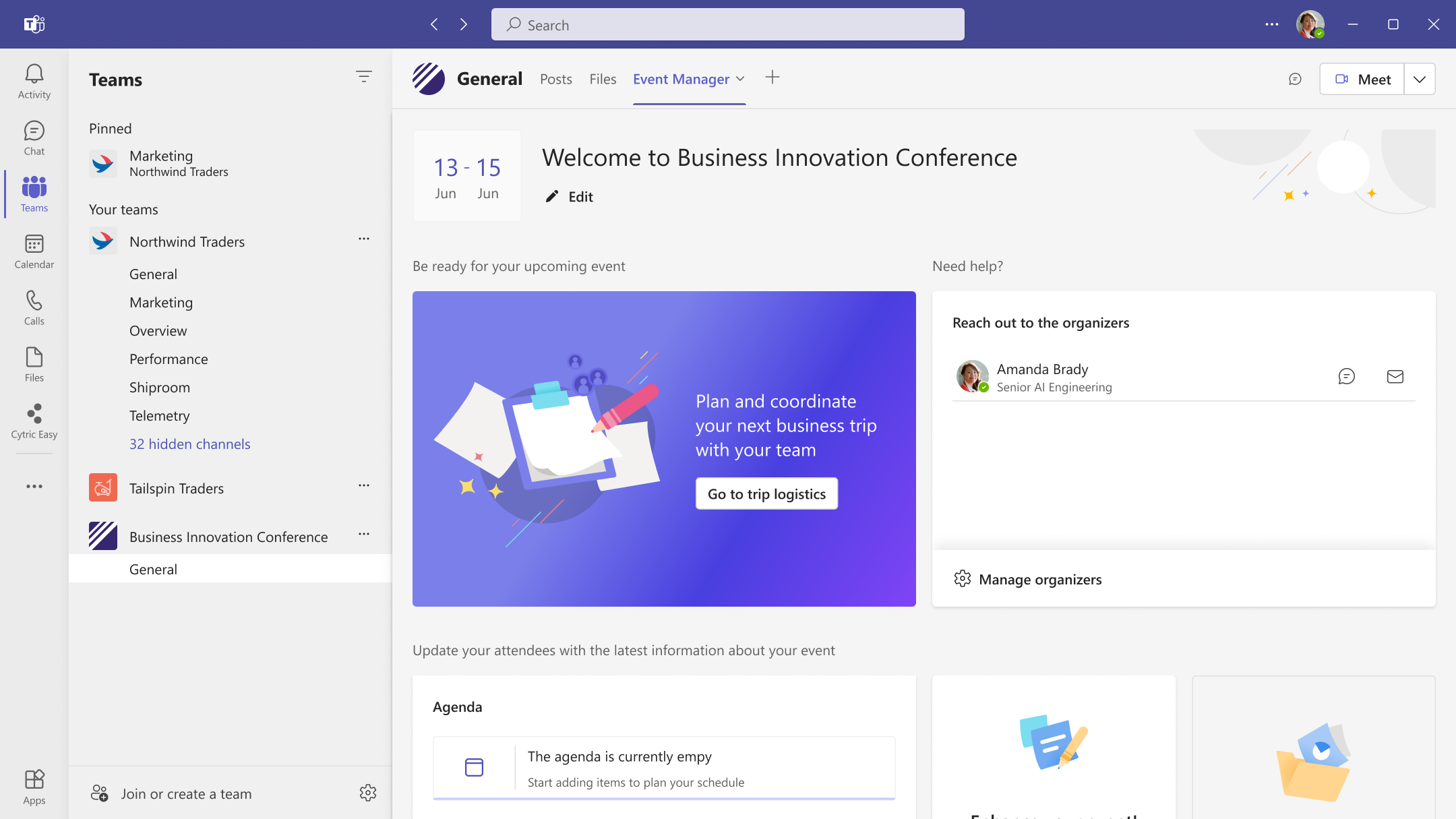
When the event has been saved, you will be redirected automatically to an empty state of the event template, with the Event Manager Tab displayed by default as your event homepage.
You can customize the information by adding items such as the agenda, location, useful information, organizers team and upload documents.
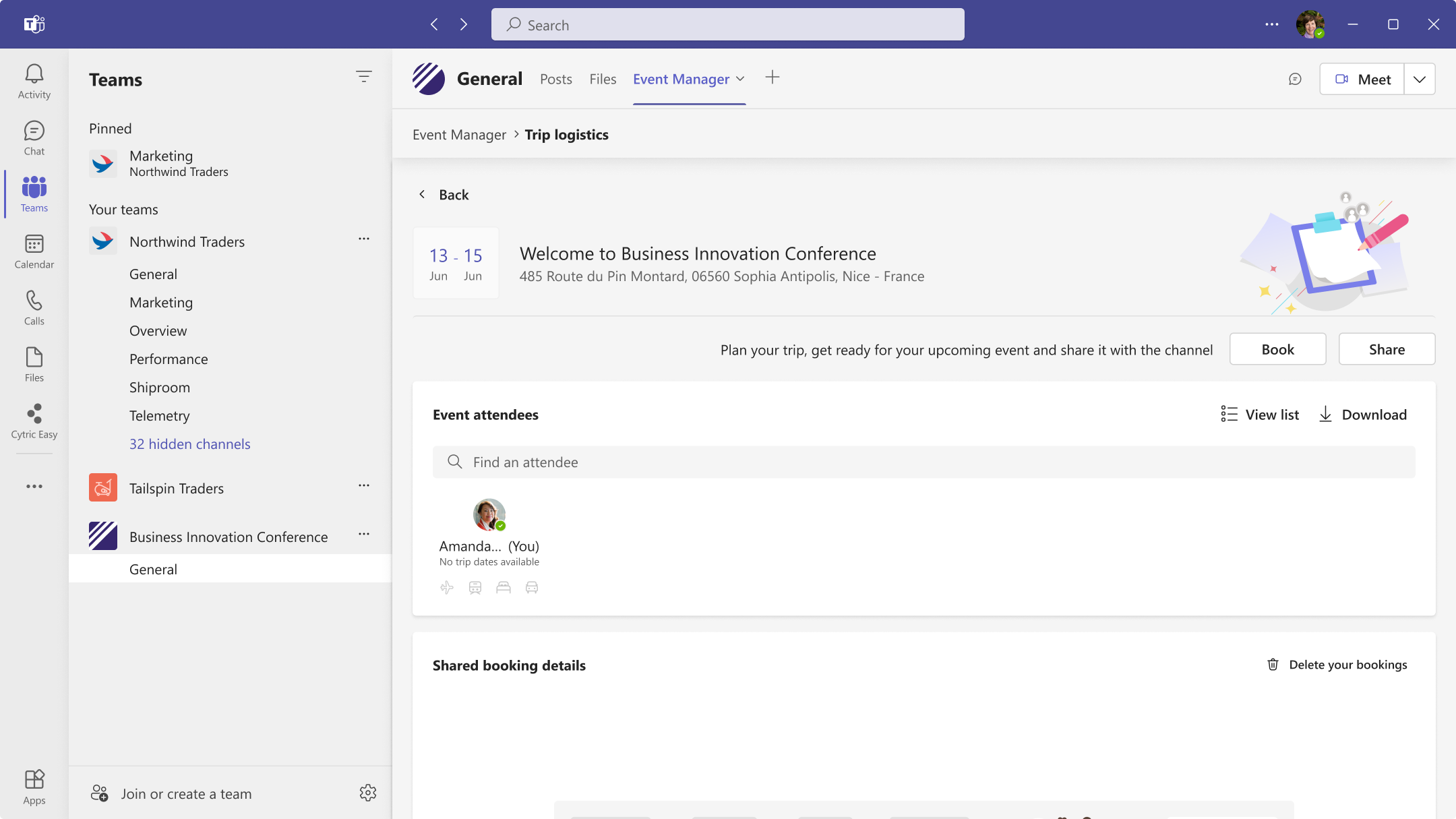
“Trip Logistics” tab, allows attendees to share their trip details to help all members with their booking process.
Note:
Only Teams channel members with “organizer” roles can edit the event details.
All members can add / remove their trip details.
Creating an event within a Teams Channel or within a Groups Chat
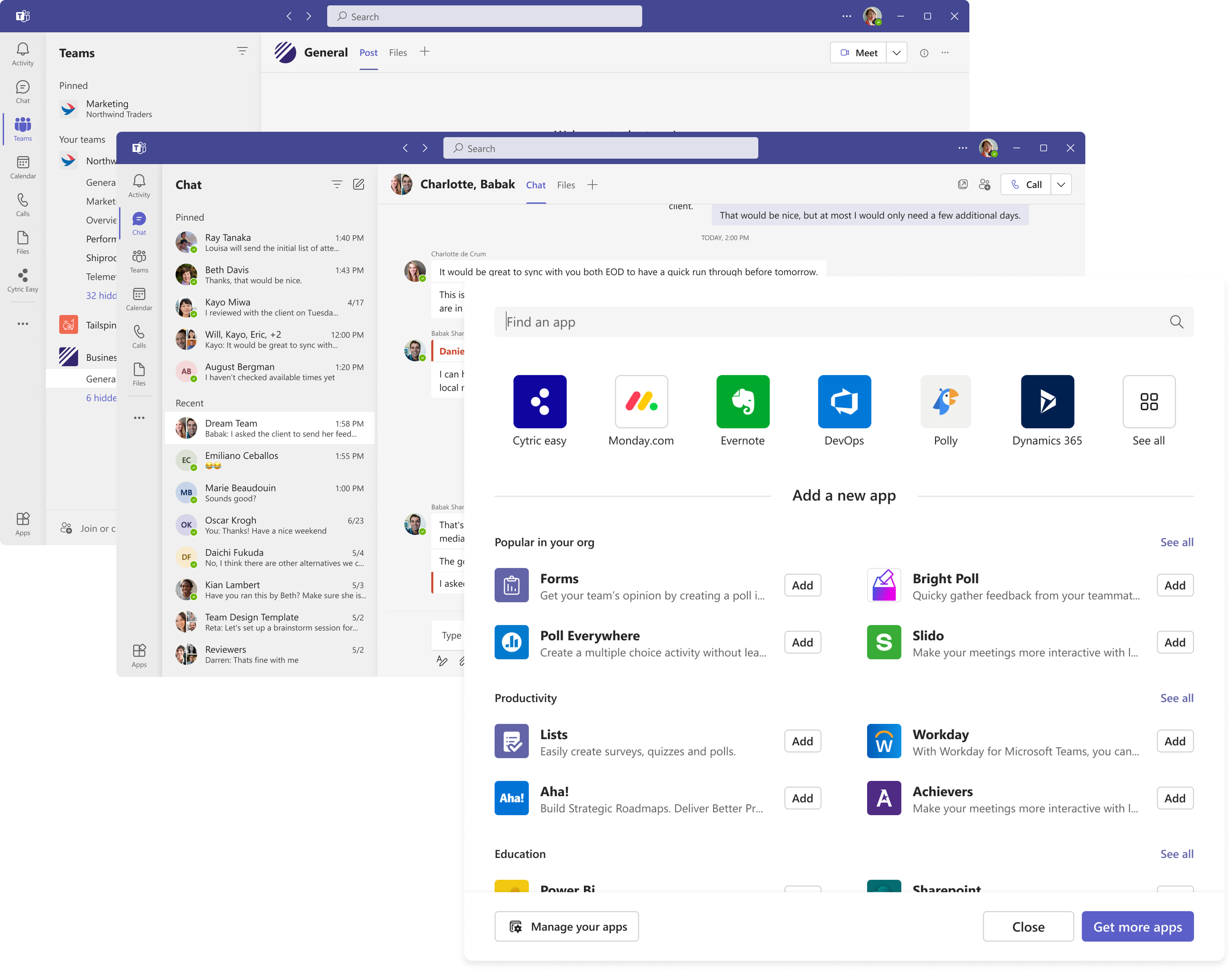
You can choose to use an existing Teams channel or create a new one for the event. You can also add the Event Manager to your Group Chat.
Select the “+” icon at the top navigation bar.
Search in the pop-up window and select “Cytric Easy” application.
Important note: You can not create an event from a "Private" channel.
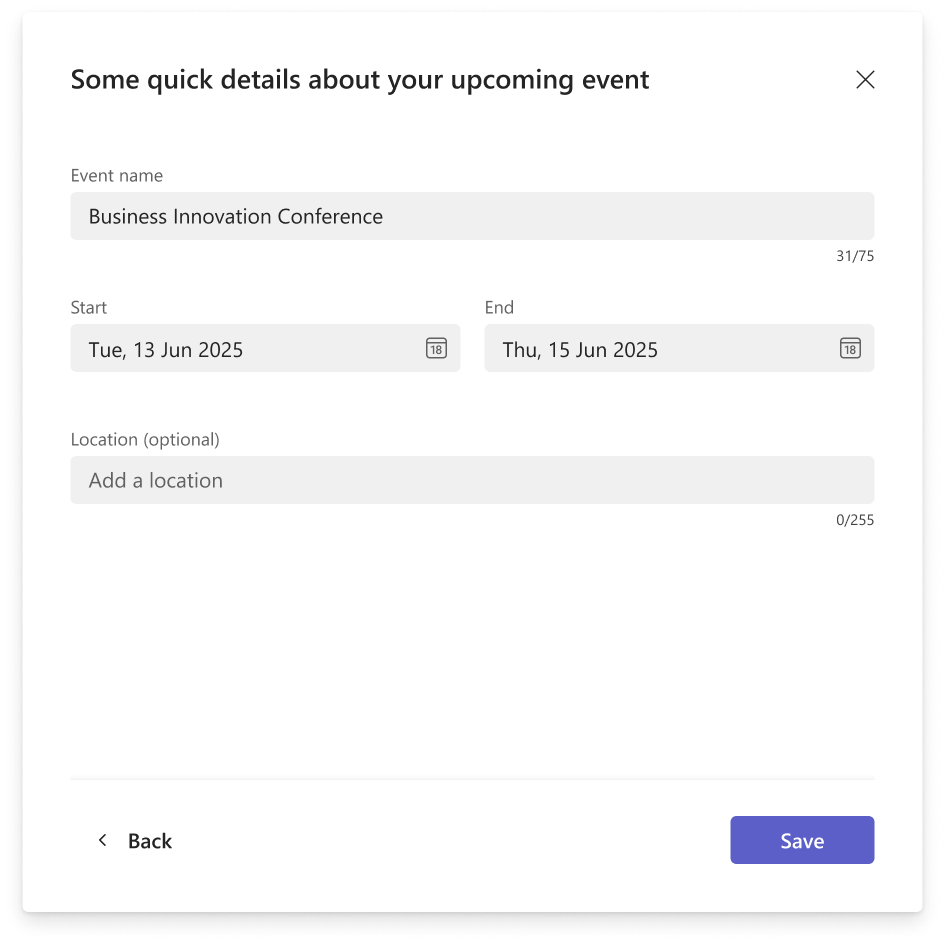
Fill in the details of the event and press the “Save” button.
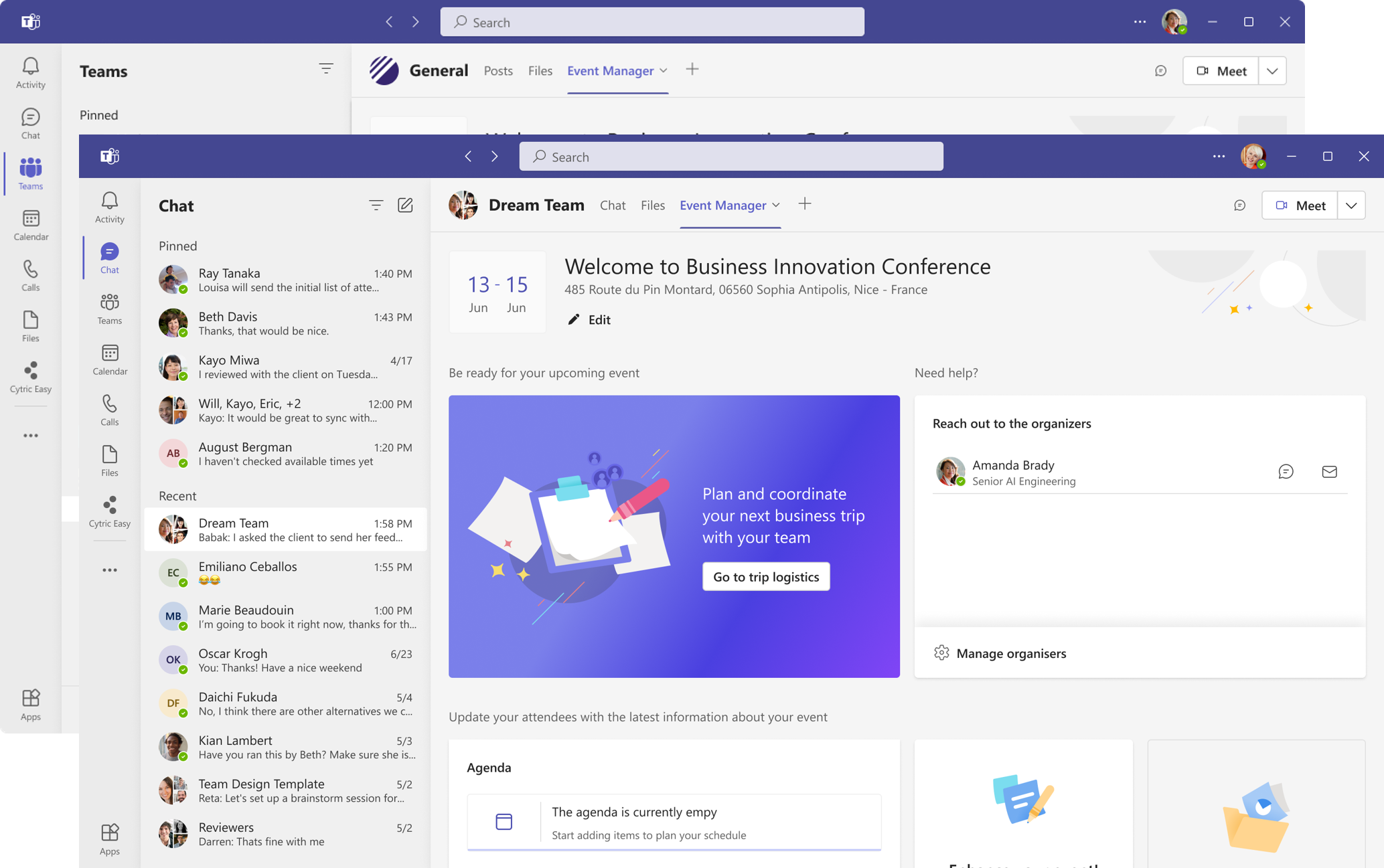
Once saved, you will have a new tab called Event Manager in the top navigation bar. It is the home page for your event where you can customize the information.
Note:
Only Group Chat members with “organizer” roles can edit the details.
All members can add/remove their trip details.